Split-screen on PC
Dragon Ball: Xenoverse 2
Up to 6 players on one PC, with controllers.
Handler “Dragon Ball Xenoverse 2” by Talos91, version 15
What works
With Nucleus Co-op, up to 6 players can play Dragon Ball: Xenoverse 2 together on one PC, each in their own part of the screen, with controllers. The free community handler “Dragon Ball Xenoverse 2” by Talos91 does the setup and was checked by hub moderators: version 15, updated . Dragon Ball: Xenoverse 2 is a fighting, role-playing and simulation game from 2016.
- Players6
- ControllersSupported
- Keyboard and mouseNot supported
- Several keyboards and miceNot supported
- Hub moderatorsVerified
How to play Dragon Ball: Xenoverse 2 split screen on PC
Get Nucleus Co-op
Download Nucleus Co-op, free for Windows 10 and 11, and unzip it into its own folder, for example C:\NucleusCo-op. There is no installer.
Keep it out of Program Files, your user folder and OneDrive.
Install the Dragon Ball: Xenoverse 2 handler
In Nucleus Co-op, search the Hub for Dragon Ball: Xenoverse 2 and install its handler, or download the handler file from this page and drop it on the Nucleus window. Then show Nucleus where Dragon Ball: Xenoverse 2 is installed.
Take a seat
Each player presses a button on their own controller to join and takes a spot on the screen. Pick a layout that fits your players.
Launch and connect
Press Launch: Nucleus opens one copy of Dragon Ball: Xenoverse 2 per player and lays the windows out on your screen. Then link them in game, usually one player hosts a LAN or online session and the others join it. The handler notes say how.
What you need
- A Windows 10 or 11 PC
Nucleus Co-op runs on Windows only. System requirements
- Dragon Ball: Xenoverse 2 for Windows
Installed on that PC. Nucleus starts every player's window from that one install.
- Nucleus Co-op, free
With .NET Framework 4.7.2 or later and the Visual C++ 2015–2022 runtimes (x86 and x64). Download
- Something to play with
One controller per player: Xbox, PlayStation or generic pads. Controllers
- A PC that can run 6 copies
Each player runs their own copy of Dragon Ball: Xenoverse 2, so the PC carries several times the usual load. Lower the graphics settings if it struggles. Performance tips
- A multiplayer mode
Nucleus links the windows through the game's own LAN or online mode; the handler takes care of it.
Handler notes
-
WARNING: For the latest game version 1.26.1 connecting the instances and starting a multiplayer game only works correctly in Windows 10, if you are on Windows 11 you will get stuck when the count reaches 0 after all players get ready in a lobby, downgrade to the previous game version 1.25.2 like mentioned below if you want the handler to work on Windows 11 too.
-
Fully CLOSE Steam before running this. So the instances launch and resize correctly make sure you ran your main game at least once and changed some graphic settings. You need the latest og steam_api64.dll for this handler to work correctly.
-
You can change the resolution in the game graphic options to adjust better to the window size if you get black bars. You need to add custom resolutions in your AMD/Nvidia/Intel panel (for example for a 1920x1080 monitor add resolutions like: 960x1080, 1920x600 etc.) for the game to see and use them.
-
The online co-op missions and versus mode unlock after the fight against Raditz and after you beat the first offline parallel quest, host a lobby in one instance and join in the others using search game, try a second time if you get a connection error when hosting or joining a lobby.
-
If you want to use XV2PATCHER for mods you need to install it in your main files using the alternative dinput8.dll it includes and not the default xinput1_3.dll.
-
If you want to use your own Steam save file, the file is located in C:\Program Files (x86)\Steam\userdata"your id"\454650\remote\DBXV21\DBXV2.sav. But simply replacing the savedata file is not enough because this game ties your save data to your player steam id, so you need to get your player steam id number, here is the easiest way to get it. Then you can paste your player steam id for the first player in Nucleus Co-op UI settings players tab and copy the save to its respective instance in C:\Users<your username>\NucleusCoop, you can access your saves per instance via the Nucleus Co-op UI after the handler first launch, right click the game icon and select open user profile save path in the UI.
-
You can also use this full save file and change its player steam id using this editor.
-
For Windows 11 users downgrade to game version 1.25.2 using the Steam console like this:
- Press the Windows key + r and type steam://open/console then click ok or press enter.
- Copy the following command into the console and press enter: download_depot 454650 454651 7238901667150908628 .
- After the download has finished the console will show you where the files are located, copy the files into a new folder, name it something like X2 v.1.25.2 or anything, when you add the handler in Nucleus and have created a new folder, you must choose the exe file from that folder.
-
Read the FAQ if you have any further questions and want to know more about Nucleus Co-op.
-
Handler by Zeuz3050 and Talos91. Please support the Nucleus Co-op team if you like my Nucleus handler work.
About Dragon Ball: Xenoverse 2
DRAGON BALL XENOVERSE 2 builds upon the highly popular DRAGON BALL XENOVERSE with enhanced graphics that will further immerse players into the largest and most detailed Dragon Ball world ever developed. DRAGON BALL XENOVERSE 2 will deliver a new hub city and the most character customization choices to date among a multitude of new features and special upgrades.
Summary from IGDB
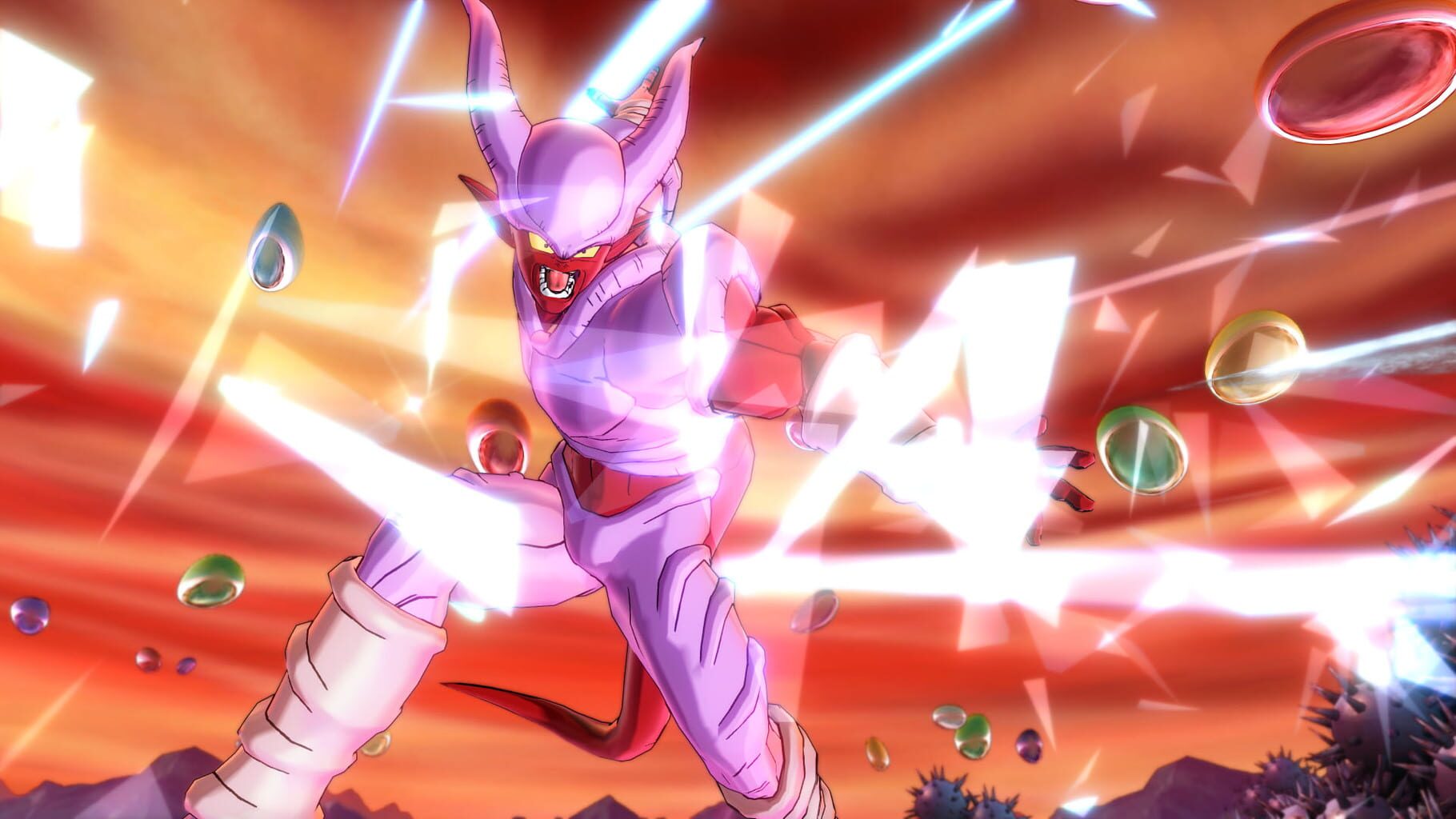
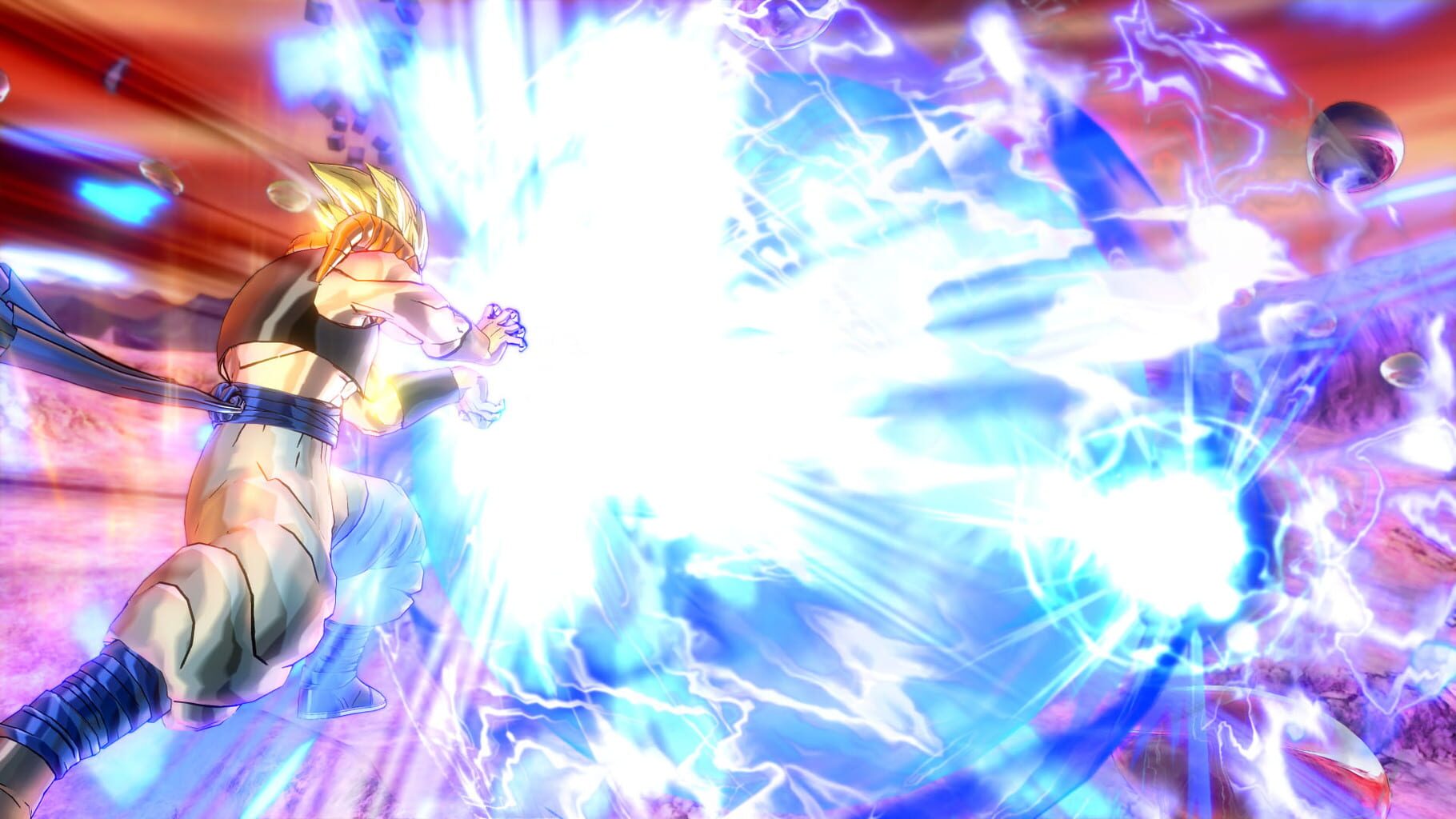
Dragon Ball: Xenoverse 2 screenshots
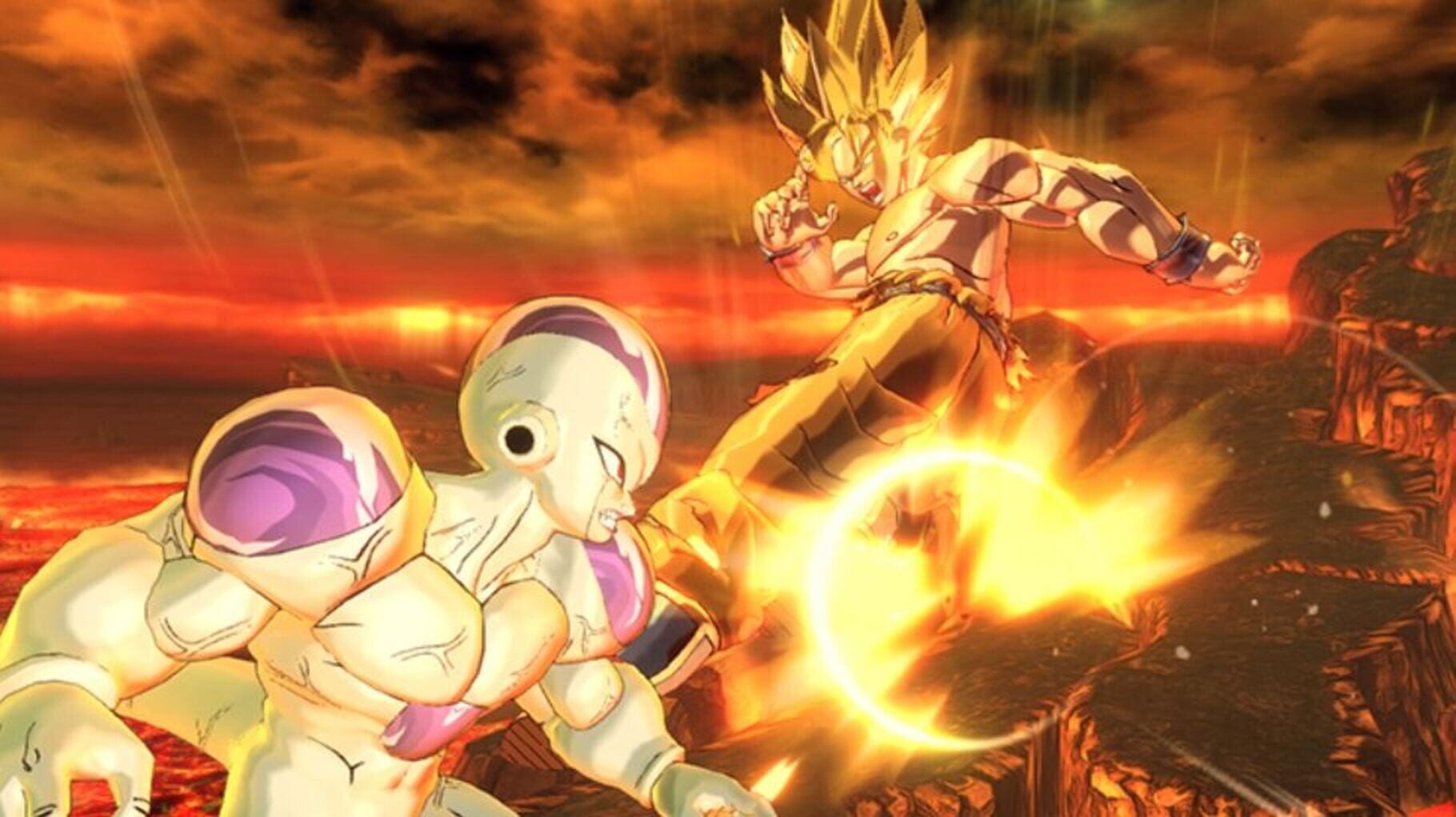
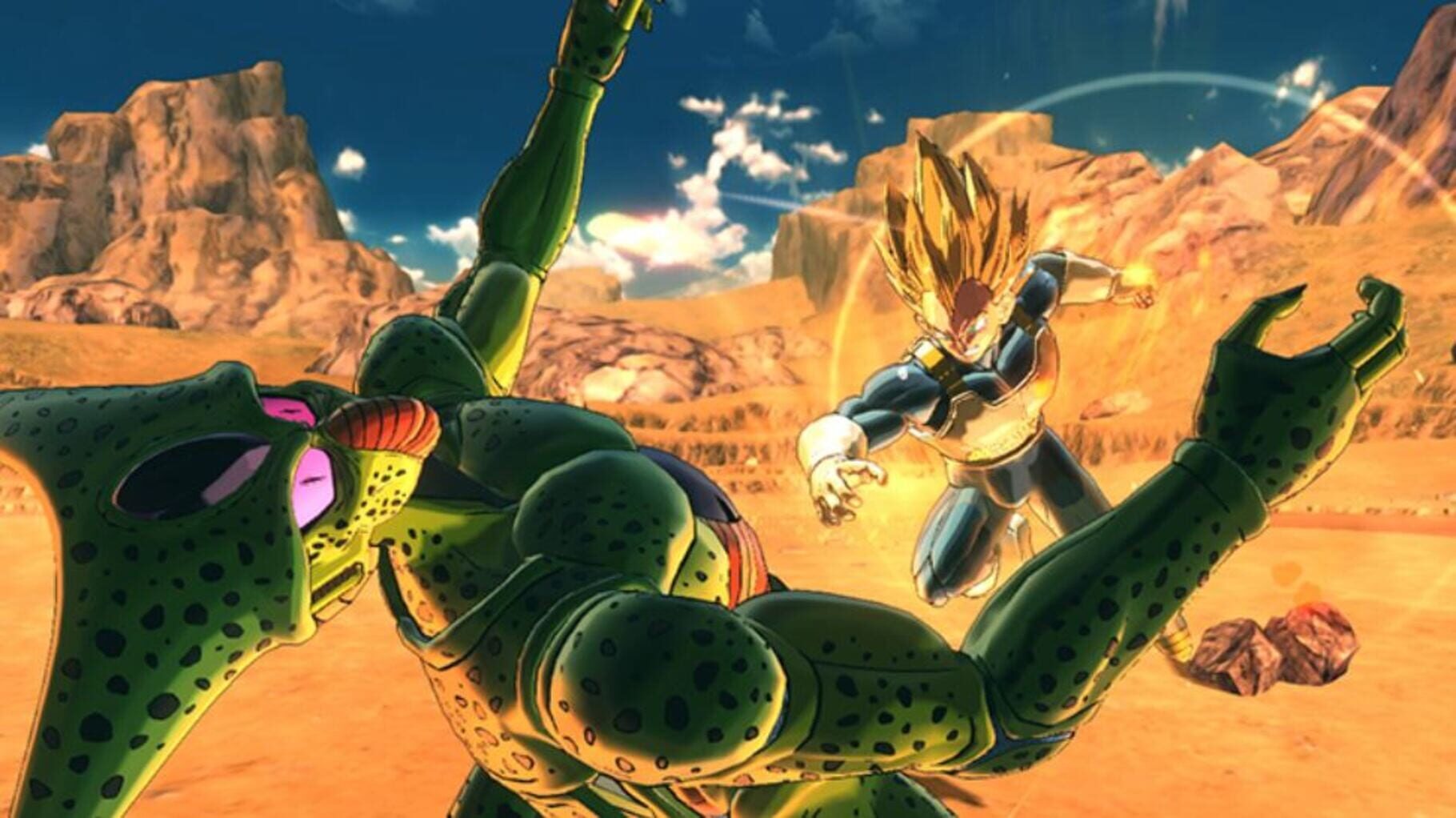
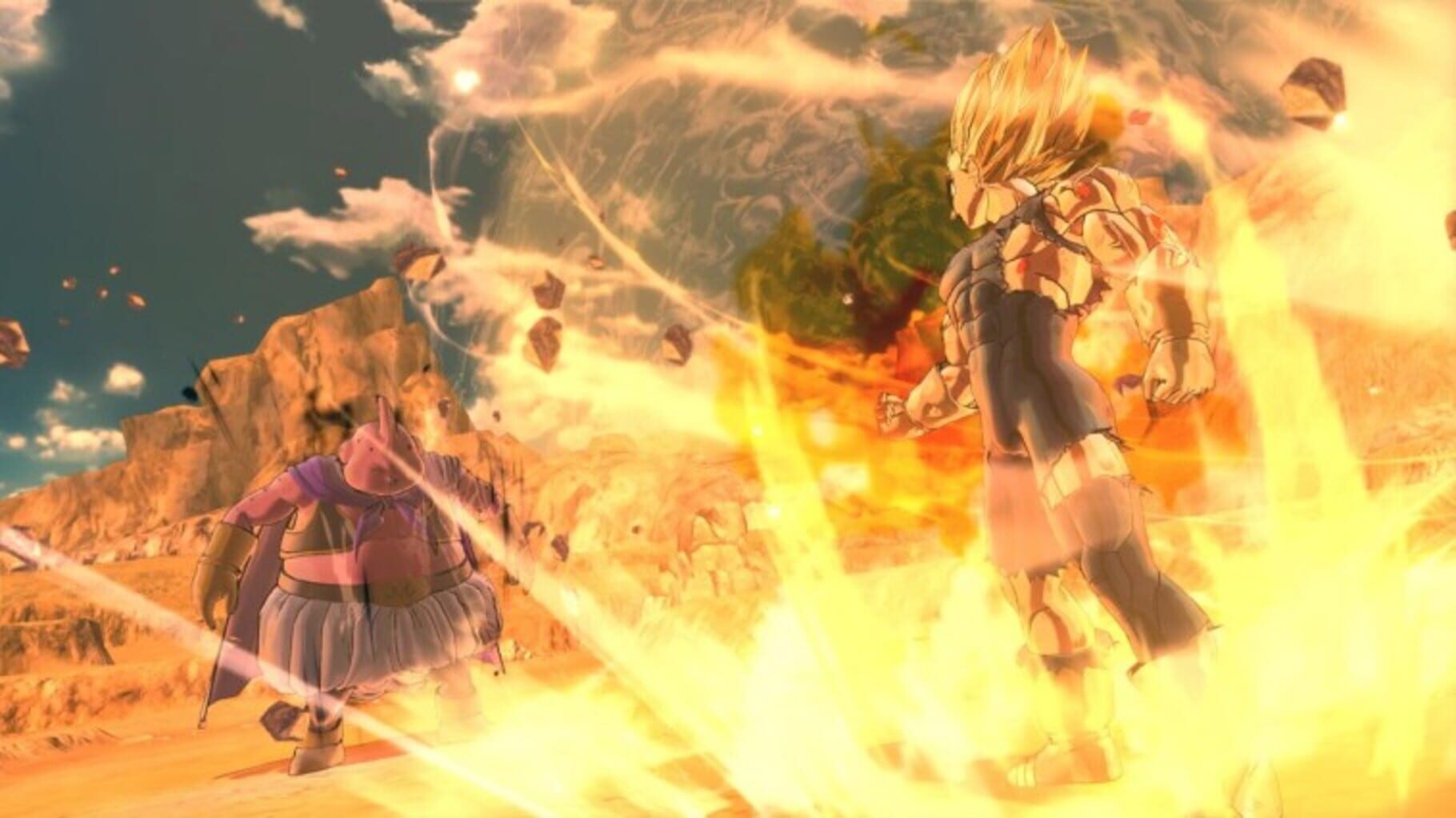
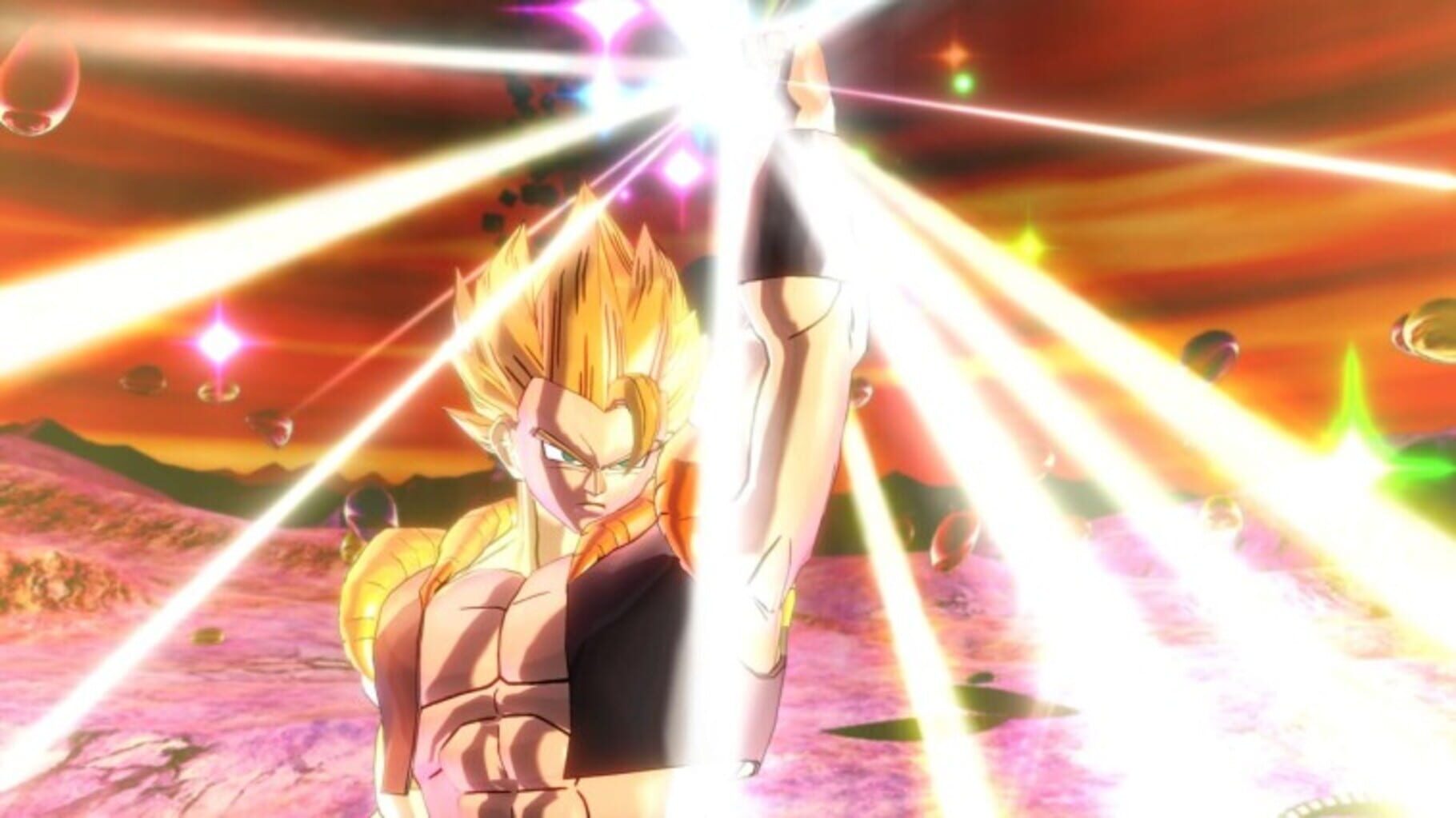
Version history
- v15Current
Updated to work with latest game version 1.26.1
- v14
New dlc
- v13
updated to work with latest game version that uses eos
- v12
support for the new dlc
Comments 2
Hi, having a problem where the update v15 of the handler does not read my old save data neither of profile 1 or profile 2, it creates a new save data and it uses for both of the profiles, v14 is able to read them both normally so any ideas how to solve this? thanks in advance : D
Move it to the new save path, right click on the game icon on Nucleus UI or use the full save mentioned in this page guide.
Play these next
Browse all games
Halo Wars: Definitive Edition
Talos912.7k downloads6
Terraria
Talos91121k downloads8
Core Keeper
Talos9115k downloads8
tModLoader
Talos9158k downloads8
Stardew Valley
Talos9133k downloads4
ARK: Survival Evolved
Talos9141k downloads8
Browse by genre: Fighting · Role-playing · Simulation
Log in or create an account to comment.