Split-screen on PC
Feed the Cups
Up to 4 players on one PC, with controllers, keyboard and mouse or several keyboards and mice.
Handler “Feed the Cups” by Zensuu, version 1
What works
With Nucleus Co-op, up to 4 players can play Feed the Cups together on one PC, each in their own part of the screen, with controllers, keyboard and mouse or several keyboards and mice. The free community handler “Feed the Cups” by Zensuu does the setup and was checked by hub moderators: version 1, updated . Feed the Cups is a simulation and indie game from 2024.
- Players4
- ControllersSupported
- Keyboard and mouseSupported
- Several keyboards and miceOne per player
- Hub moderatorsVerified
How to play Feed the Cups split screen on PC
Get Nucleus Co-op
Download Nucleus Co-op, free for Windows 10 and 11, and unzip it into its own folder, for example C:\NucleusCo-op. There is no installer.
Keep it out of Program Files, your user folder and OneDrive.
Install the Feed the Cups handler
In Nucleus Co-op, search the Hub for Feed the Cups and install its handler, or download the handler file from this page and drop it on the Nucleus window. Then show Nucleus where Feed the Cups is installed.
Take a seat
Each player presses a button on their own controller to join and takes a spot on the screen. Pick a layout that fits your players.
Playing with several keyboards and mice? Press End once everything is in place to give each window its own cursor.
Launch and connect
Press Launch: Nucleus opens one copy of Feed the Cups per player and lays the windows out on your screen. Then link them in game, usually one player hosts a LAN or online session and the others join it. The handler notes say how.
What you need
- A Windows 10 or 11 PC
Nucleus Co-op runs on Windows only. System requirements
- Feed the Cups for Windows
Installed on that PC. Nucleus starts every player's window from that one install.
- Nucleus Co-op, free
With .NET Framework 4.7.2 or later and the Visual C++ 2015–2022 runtimes (x86 and x64). Download
- Something to play with
One controller per player, or one keyboard and mouse per player. Controllers · Keyboards and mice
- A PC that can run 4 copies
Each player runs their own copy of Feed the Cups, so the PC carries several times the usual load. Lower the graphics settings if it struggles. Performance tips
- A multiplayer mode
Nucleus links the windows through the game's own LAN or online mode; the handler takes care of it.
Handler notes
This game has local multiplayer up to two players, but with this handler you can play split-screen with up to four as well as multi-monitor and multiple mice and keyboards.
◦ Supports xinput gamepads and multiple mice and keyboards.
◦ Read the handler notes in the UI carefully.
◦ Authors and Contributors of this handler: Zensuu. A special thanks to the Nucleus Co-op and Split Screen Dreams communities.
About Feed the Cups
Feed the Cups is a game made of drinks. It will make you experience every bit of a drink shop. You will work in various beverage stores: preparing materials, ordering for customers, making drinks, making cups, and so on. You can cooperate with up to 2 people on the screen!
Summary from IGDB
Feed the Cups screenshots
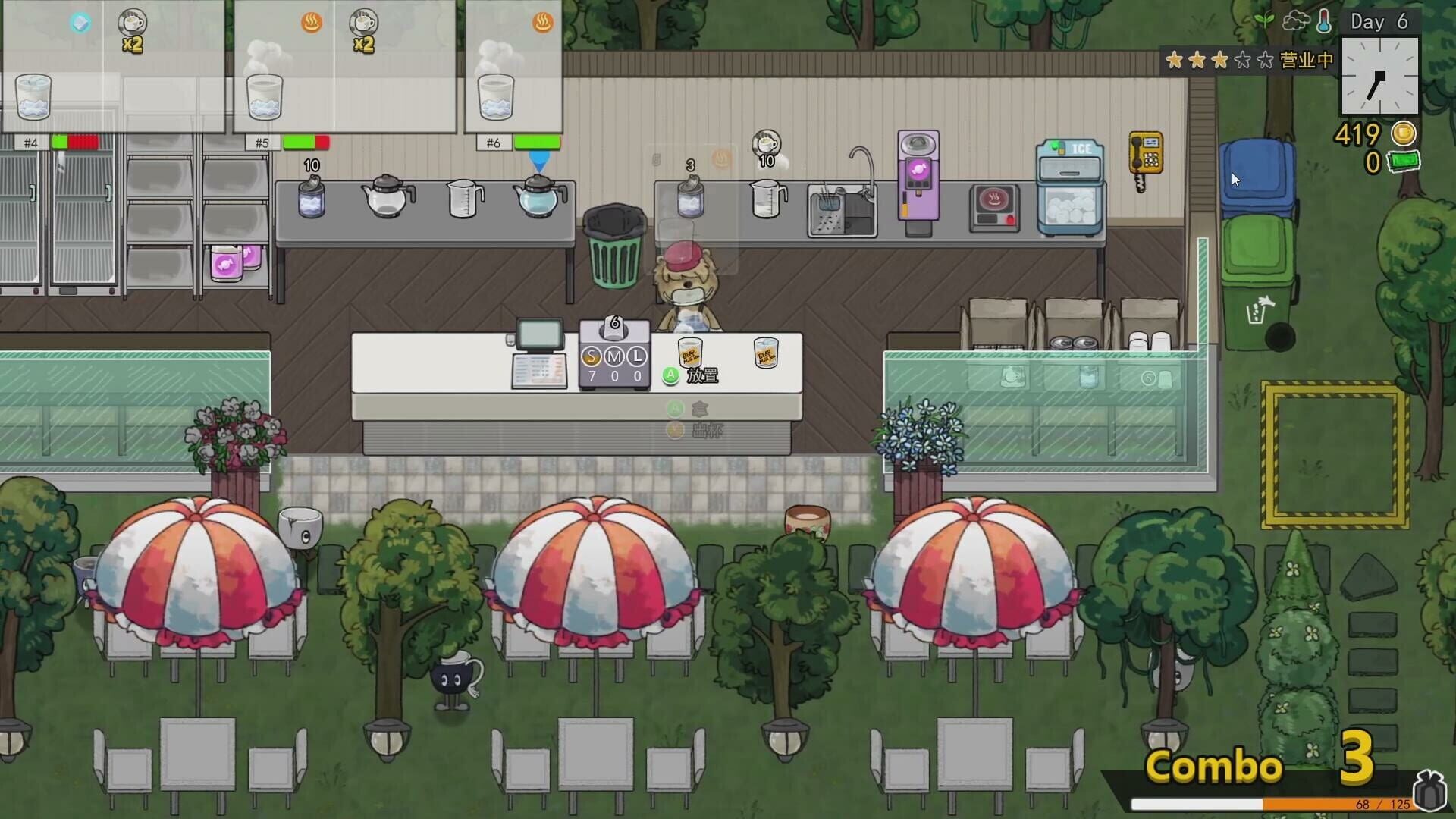
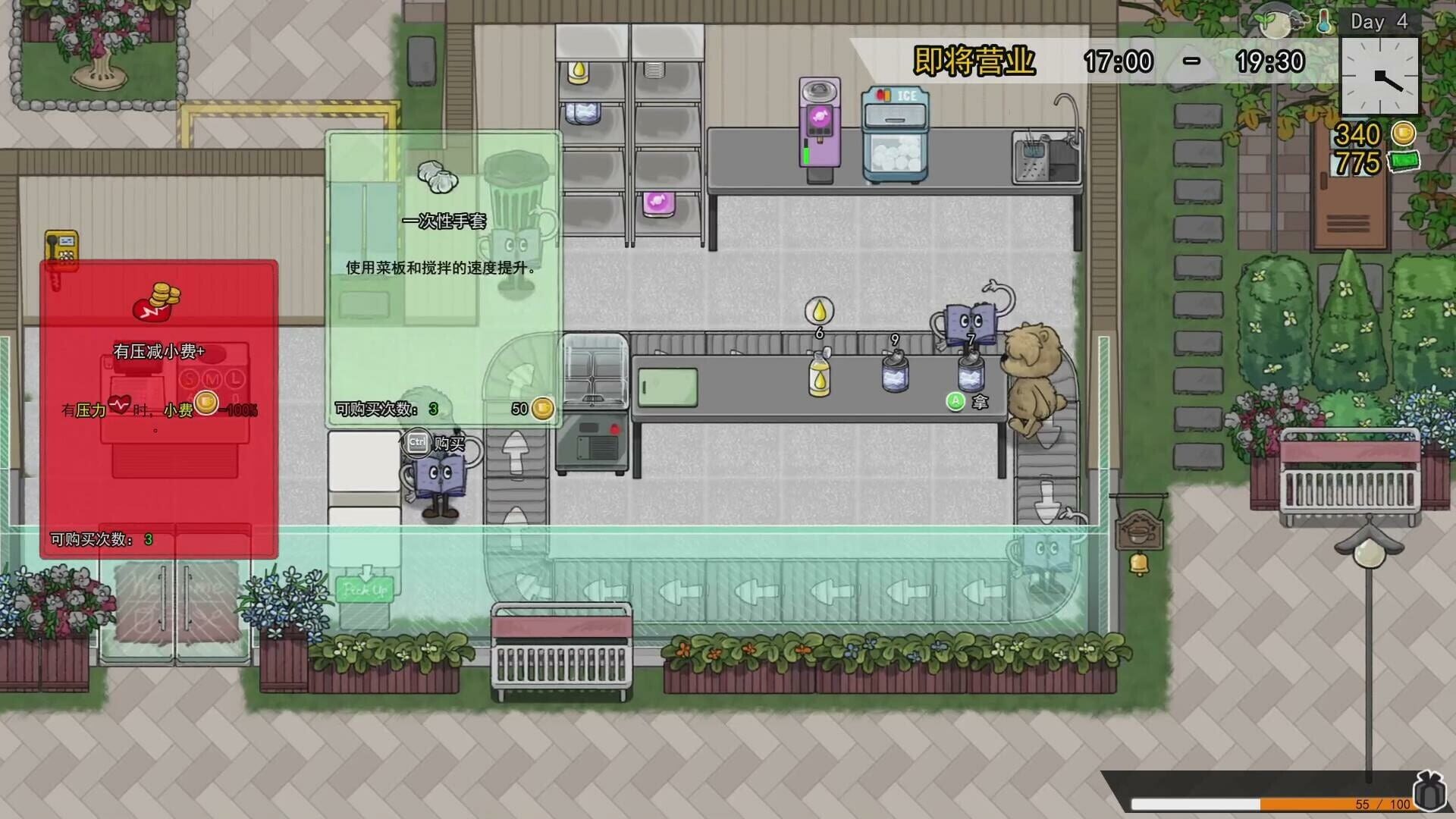
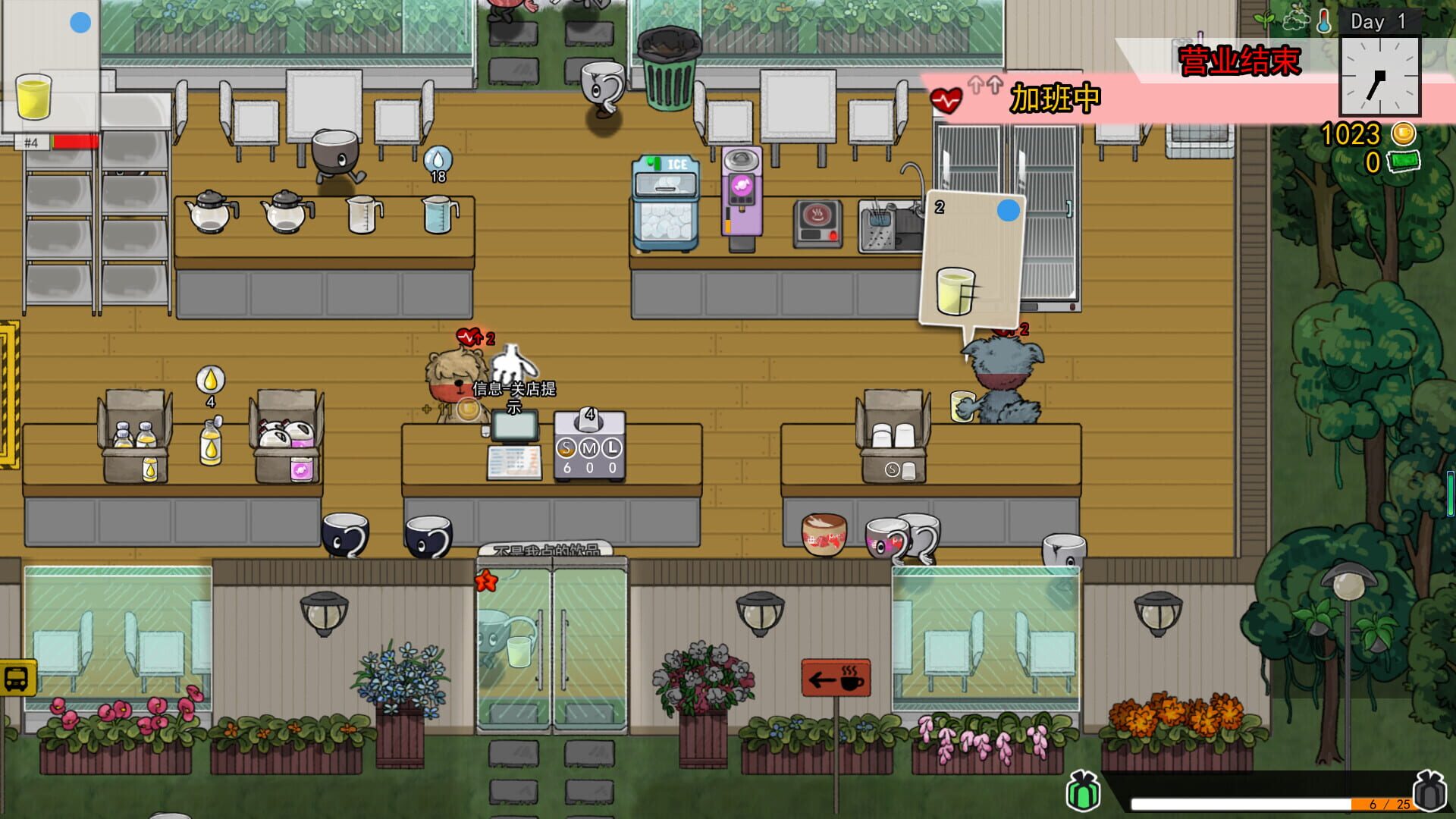
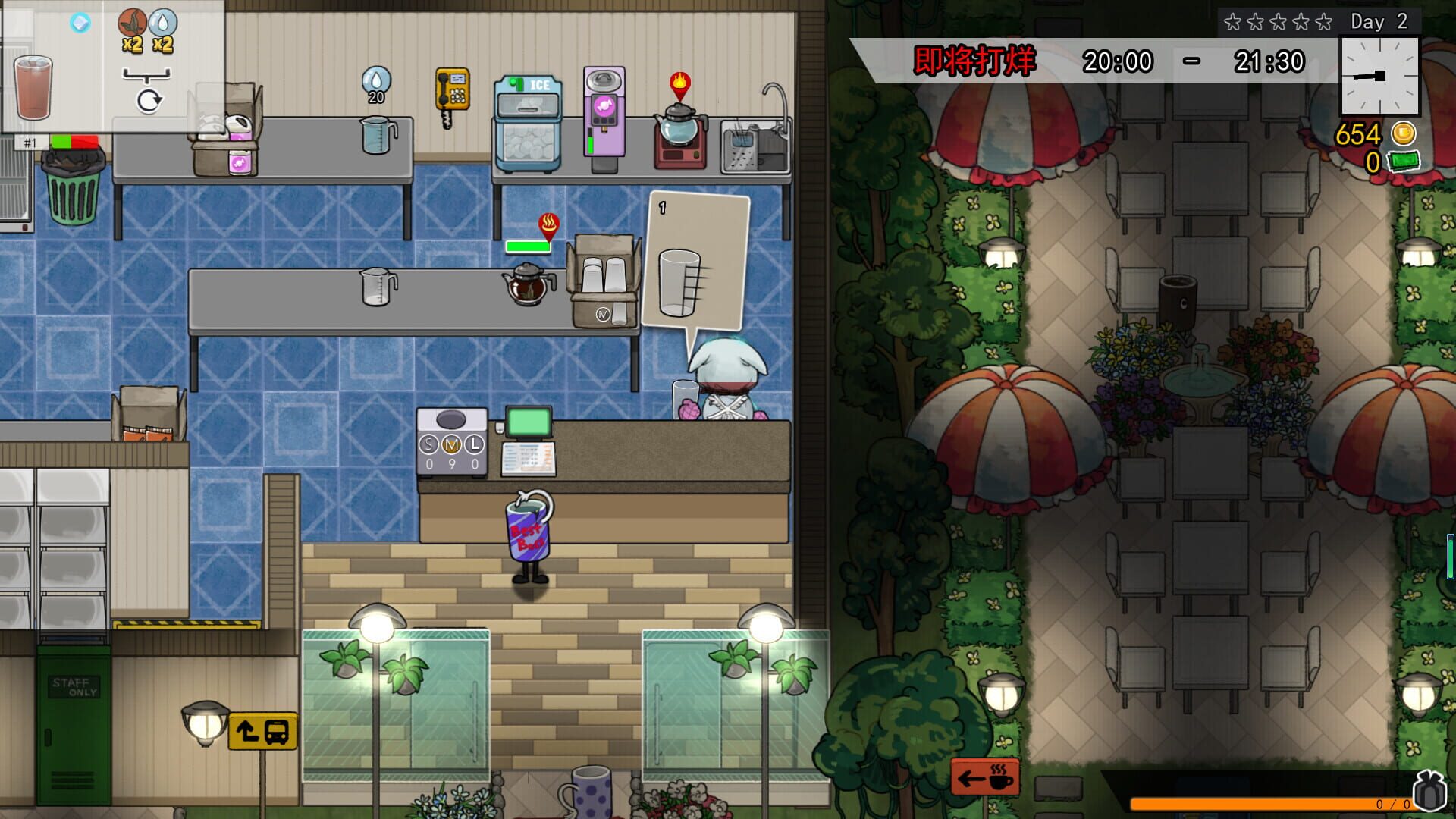
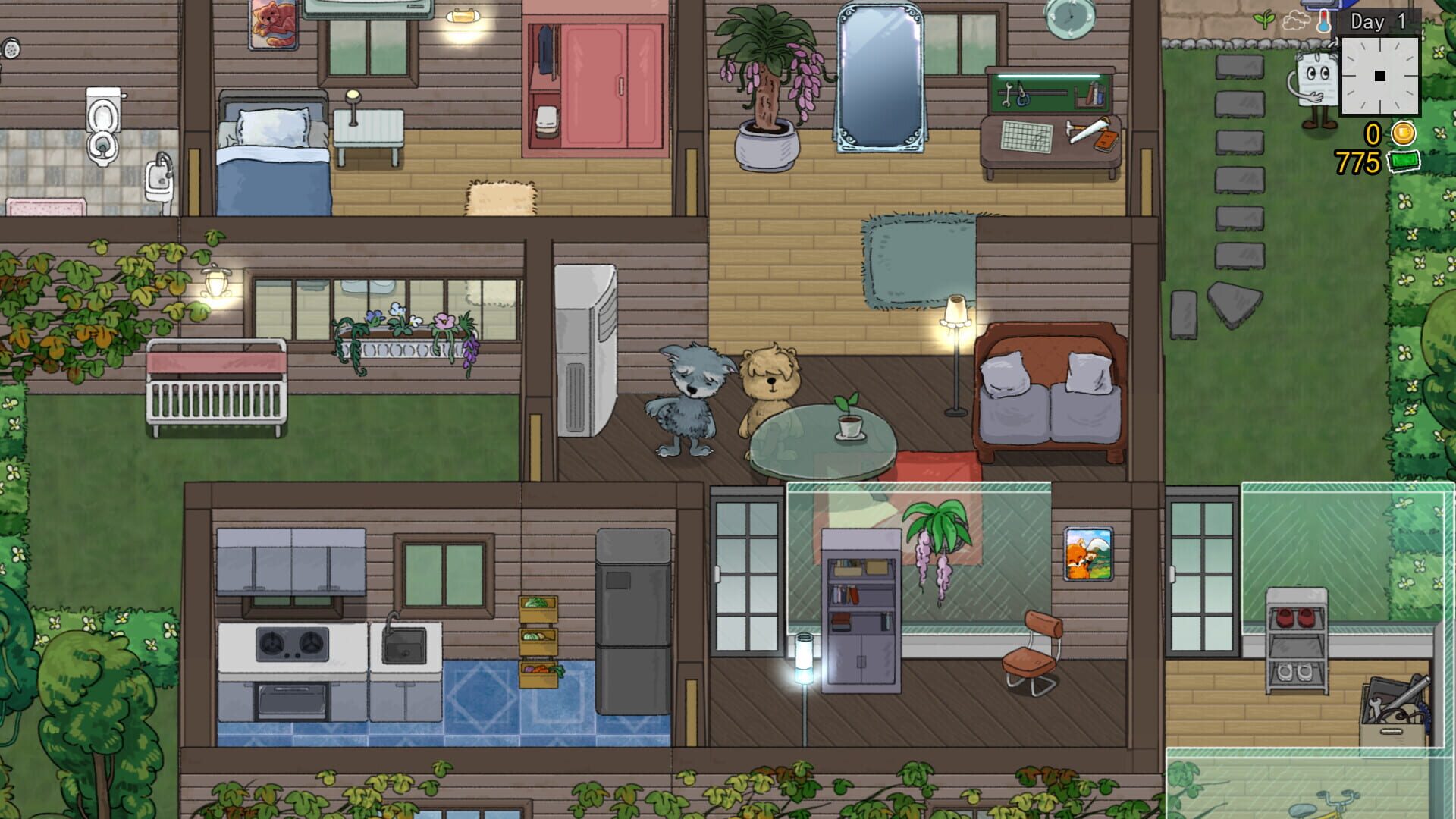
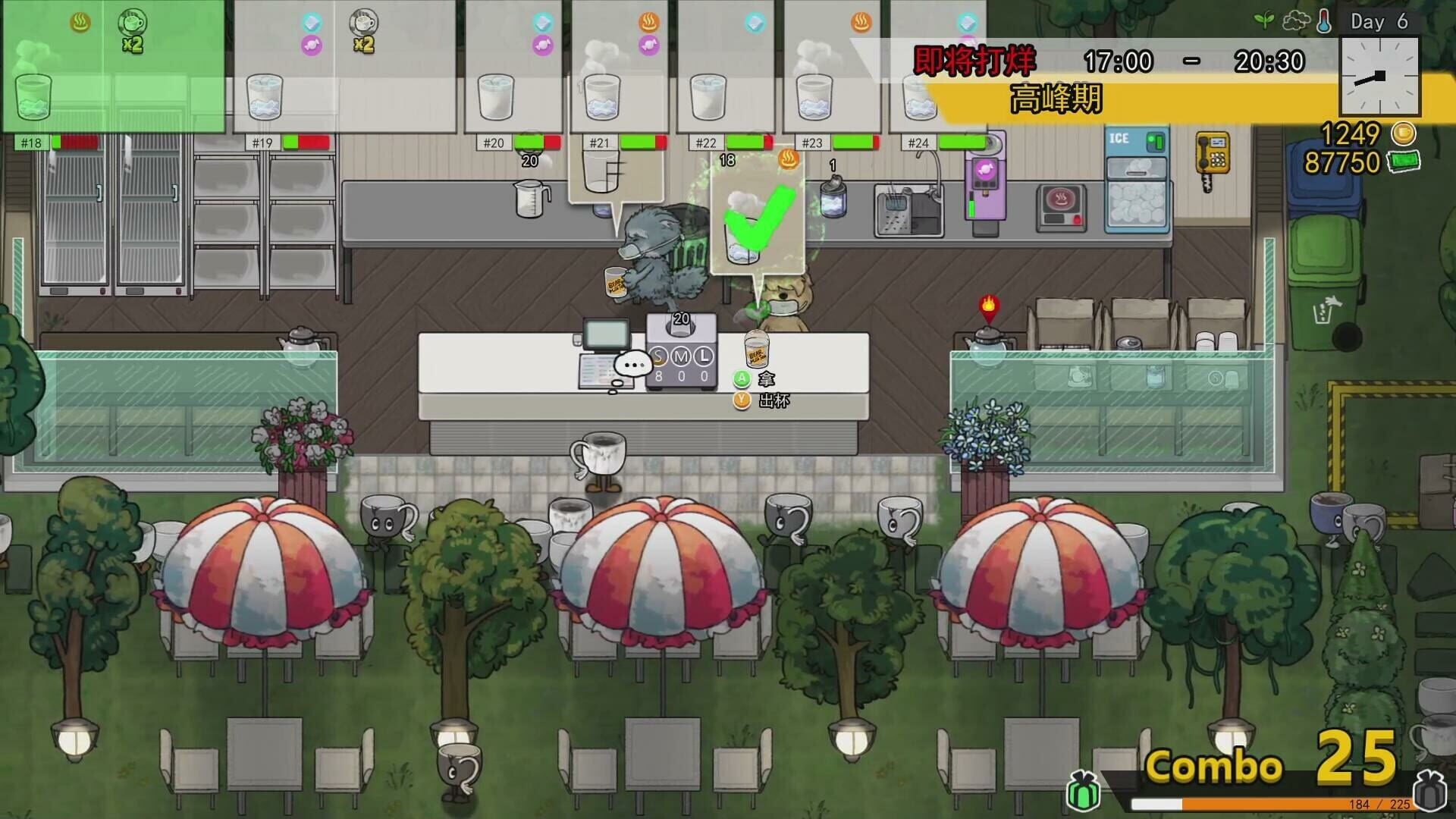
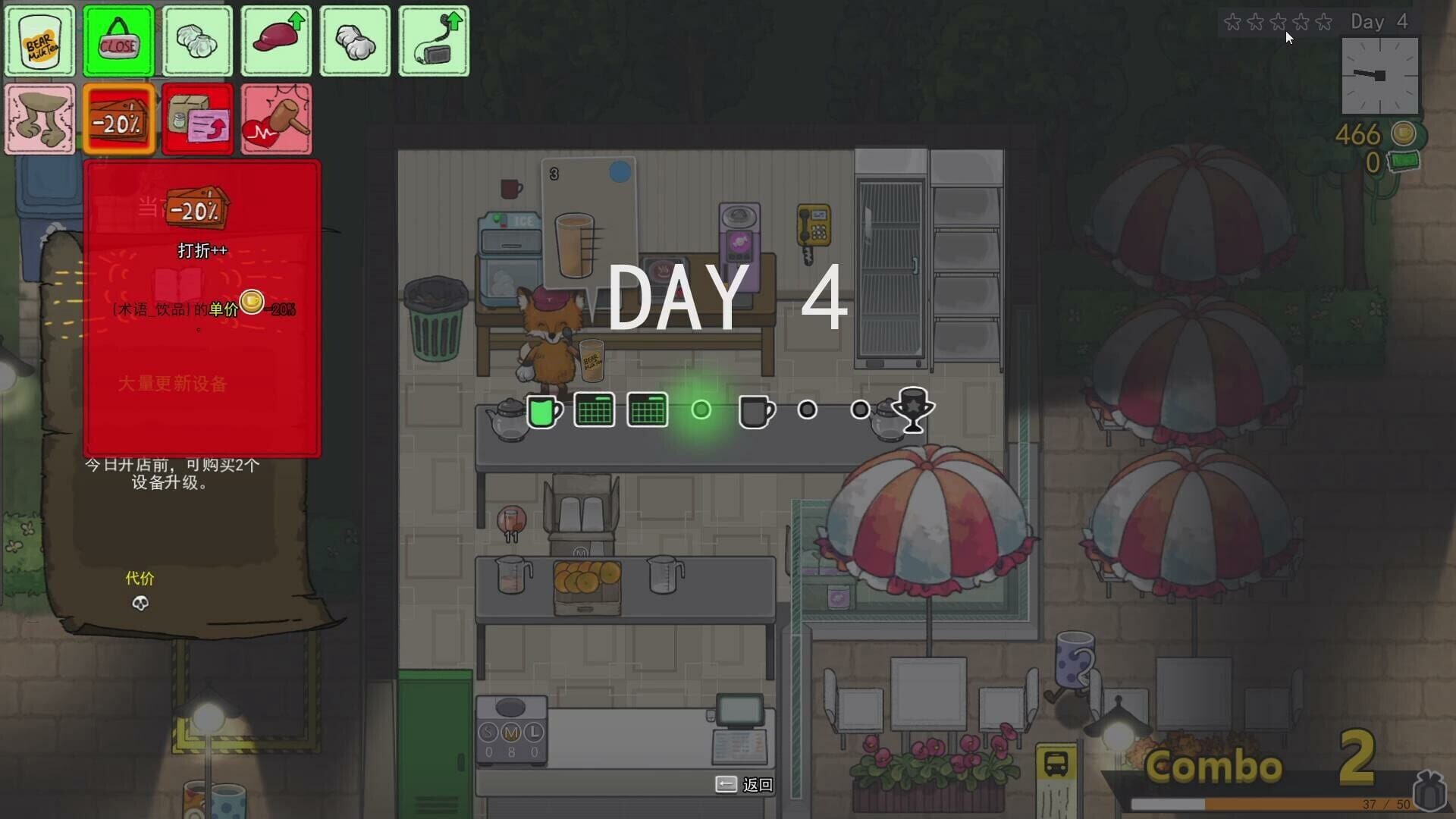
Version history
- v1Current
First release.
Comments 1
It seems that due to a recent game update, the default steam_api64.dll provided by Nucleus no longer allows players to connect to each other. No players appear in the in-game phone interface, and even entering the room code manually fails to establish a connection. However, after replacing steam_api64.dll with the version used by the game "Luma Island", players can see each other again and successfully connect to the same room.
Play these next
Browse all games
Raft
The Shnazberry64k downloads4
Schedule I
birden18k downloads4
ASTRONEER
Talos9128k downloads4
Buckshot Roulette
birden7.1k downloads4
Waterpark Simulator
Vlxst409 downloads4
Ale & Tale Tavern
Zensuu1.5k downloads4
Browse by genre: Simulation · Indie
Log in or create an account to comment.