Your first session
Add a game to your library, let every player join with their own controller, pick a layout and launch a split-screen session with Nucleus Co-op 3.
On this page
This page walks through one session from start to finish, screen by screen. You can drive the whole app with a mouse, a keyboard or a controller: the hint bar at the bottom of the window always shows what each button does.
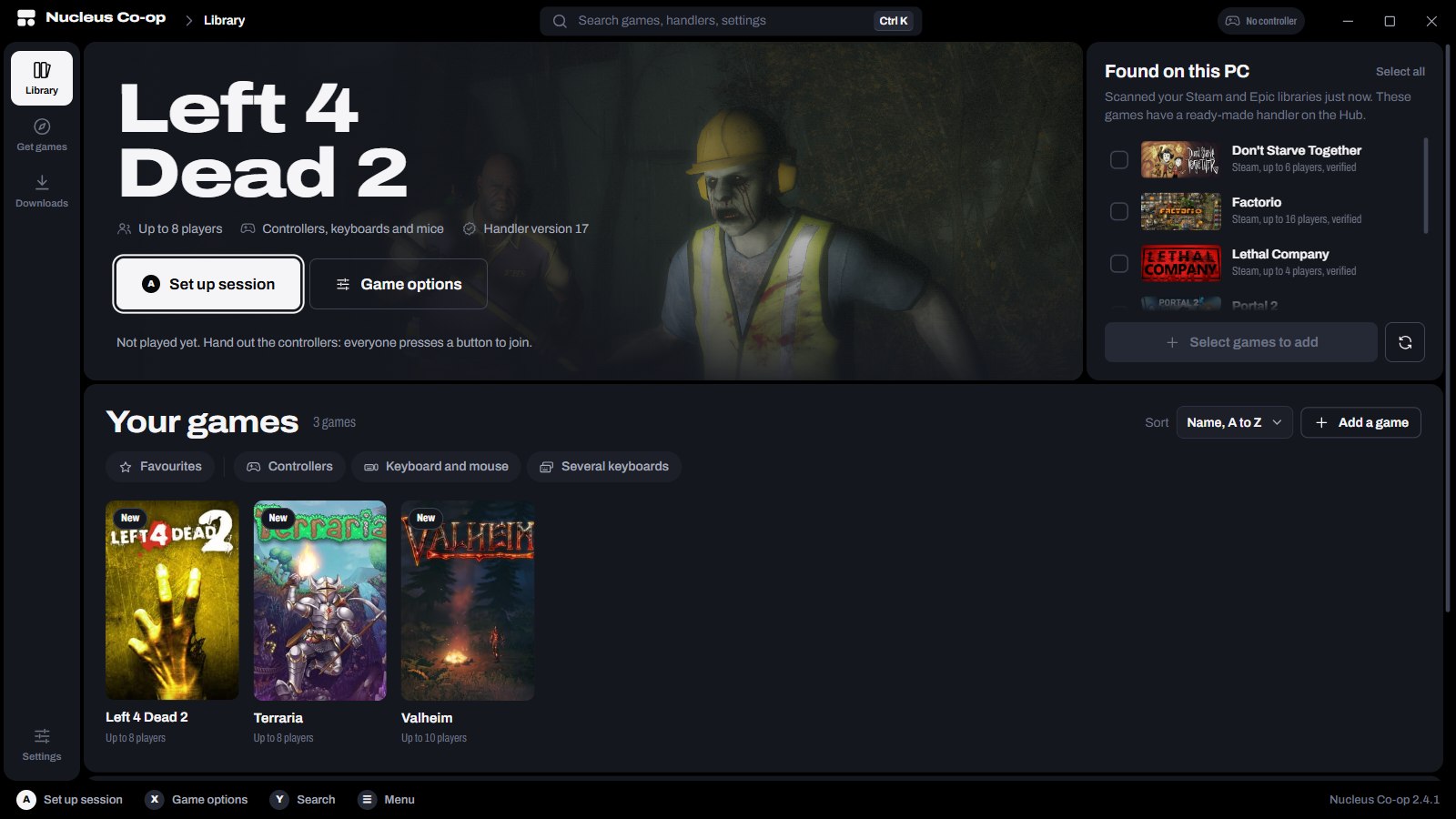
1. Add a game
There are three ways in, and you can mix them.
Found on this PC. Nucleus reads your Steam and Epic libraries and lists the installed games that have a handler on the hub. Tick the ones you want, choose Add, and Nucleus installs each handler and adds the game. If it can't find a game's executable, it asks you to pick it. Use the refresh button to scan again after installing a game.
Get games. The hub catalogue, inside the app. Search by game or author, filter by number of players or by input (controllers, keyboard and mouse, several keyboards), then Install handler. Nucleus downloads the handler and asks once where the game is installed: pick its executable (the handler tells you which file).
From a file. Drop a handler file (.nc, .zip or .js) onto the window, or use Add a game in Your
games. Use this for handlers someone sent you or that you wrote yourself.
2. Read the handler notes
Every handler comes with notes from its author: which version of the game it was made for, how to connect the copies, which options matter, what doesn't work yet. Open them from Game options › Handler Author's Notes or from the lobby header. Two minutes of reading here saves a lot of guessing later.
3. Set up the session
Choose Set up session. The lobby shows your screens and the players placed on them.
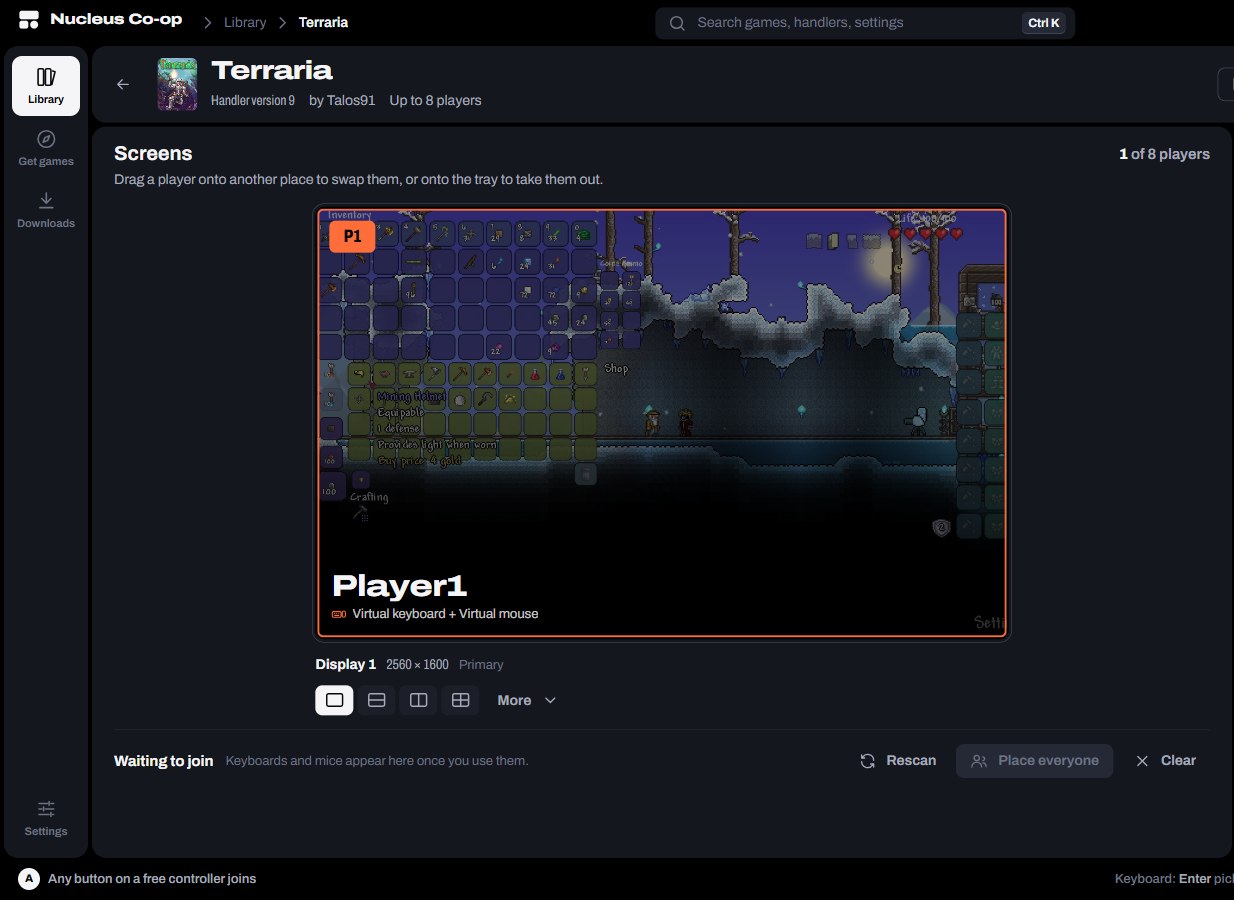
- Joining. Each player presses Start (or any button) on a free controller, or any key on a keyboard, and takes the next free place. Devices that haven't joined wait in the tray at the bottom.
- Moving players. Drag a player onto another place to swap, or onto the tray to take them out. With a keyboard or a controller, select a player, move to another place and select again.
- Layouts. Under each screen, choose full screen, two players side by side or one above the other, four quarters, or more under More. Each monitor has its own layout. See Layouts and screens.
- Nicknames and options. The side panel lists each player with their nickname and devices. If the handler has options (a game mode, a mod, a version), an extra step asks for them before you can launch.
4. Launch
Press Launch (it says how many players). Nucleus then, for each player in turn:
- prepares that player's copy of the game (linked or copied files in the
contentfolder), - starts it with the right controls, network identity and settings,
- waits for its window, removes the border and moves it into place.
Keep your hands off the mouse while the windows are being placed. The session screen shows each copy as it starts, the handler notes, and the controls of the session.
5. Play together
The copies are separate games: connect them the way the game does it on a network. Usually one player hosts a LAN or online game and the others join it from their own window. The handler notes say exactly how.
If players use keyboards and mice, press End once every window is in place. That locks each keyboard and mouse to its player's window. Press End again to get your mouse back. More in Keyboards and mice.
6. Stop
Hold Stop session on the session screen, or press Ctrl+E. Nucleus closes every copy of the game and puts your desktop back as it was. Ctrl+Q closes Nucleus Co-op itself, with every copy.
If inputs are locked, unlock them first with End.
Shortcuts during a session
| Keys | What they do |
|---|---|
| End | Lock or unlock keyboards and mice |
| Ctrl+E | Stop the session |
| Ctrl+Q | Close Nucleus Co-op and every copy |
| Ctrl+R | Put the windows back in place |
| Ctrl+H | Unfocus the game windows (evens out performance) |
| Ctrl+T | Toggle "always on top" for the game windows |
| Ctrl+N | Switch layout |
| Ctrl+M | Cutscenes mode |
| Alt+R | Show the shortcuts reminder |
All of them can be changed in Settings › Keyboard shortcuts, and most have a controller combination too (see Controllers).
Next time
Your setup can be saved as a profile: turn on Save a profile when the session starts in the lobby. Next time, load the profile and players drop straight into their places as they press a button. See Saves and profiles.