Split-screen on PC
Zengeon
Up to 4 players on one PC, with controllers, keyboard and mouse or several keyboards and mice.
Handler “Zengeon” by Talos91, version 3
What works
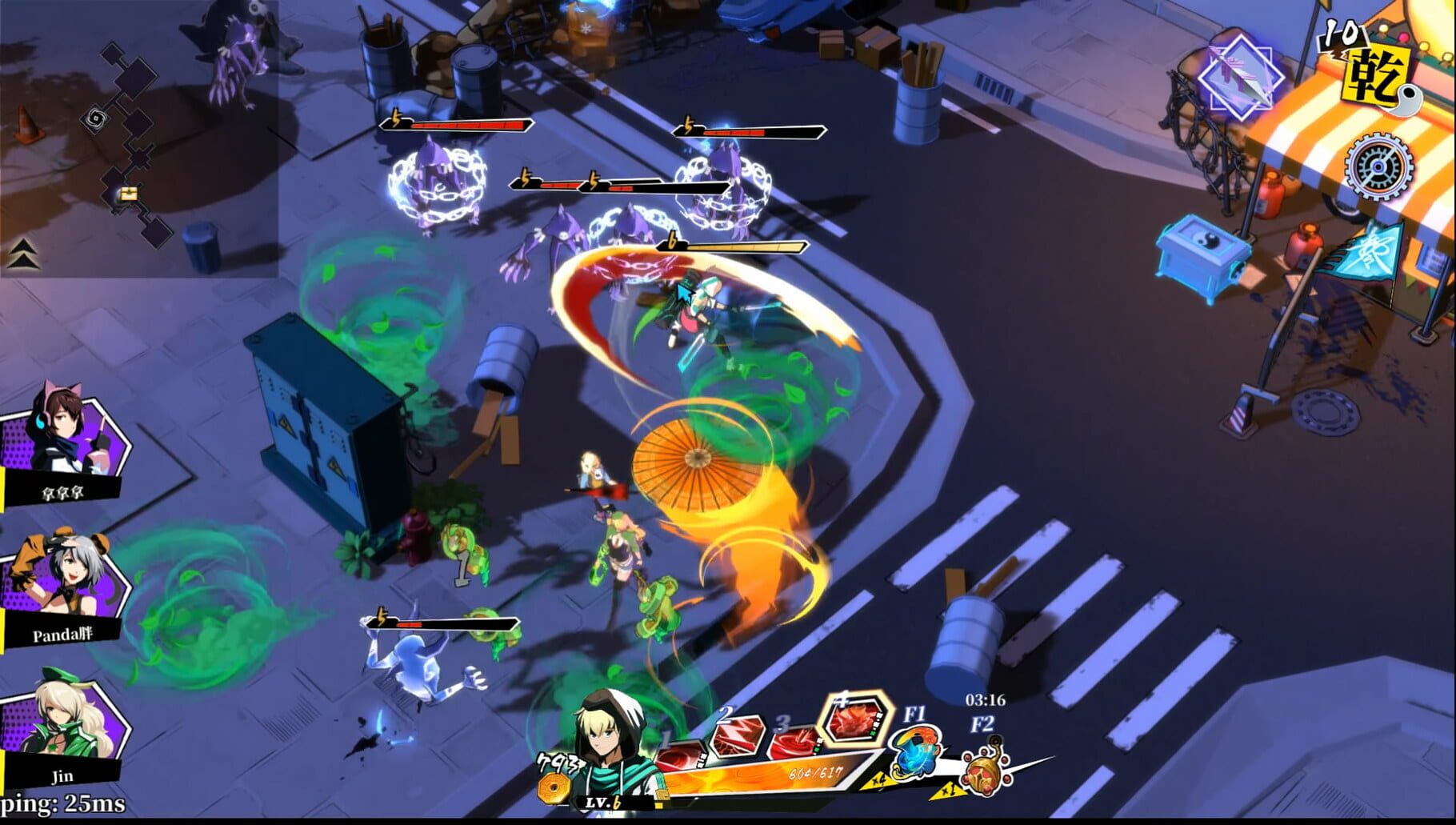
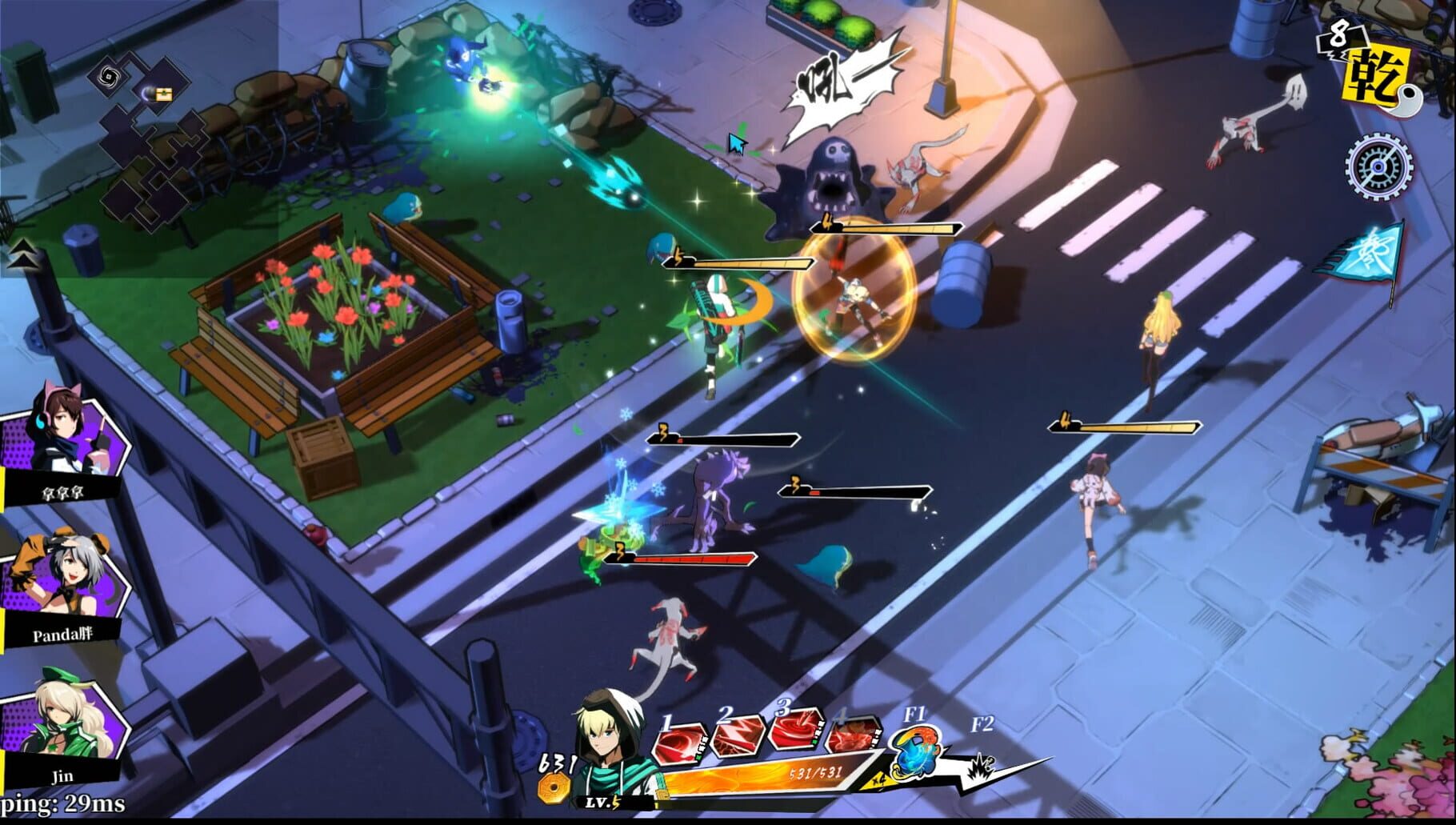
With Nucleus Co-op, up to 4 players can play Zengeon together on one PC, each in their own part of the screen, with controllers, keyboard and mouse or several keyboards and mice. The free community handler “Zengeon” by Talos91 does the setup and was checked by hub moderators: version 3, updated . Zengeon is a role-playing, hack and slash and adventure game from 2019.
- Players4
- ControllersSupported
- Keyboard and mouseSupported
- Several keyboards and miceOne per player
- Hub moderatorsVerified
How to play Zengeon split screen on PC
Get Nucleus Co-op
Download Nucleus Co-op, free for Windows 10 and 11, and unzip it into its own folder, for example C:\NucleusCo-op. There is no installer.
Keep it out of Program Files, your user folder and OneDrive.
Install the Zengeon handler
In Nucleus Co-op, search the Hub for Zengeon and install its handler, or download the handler file from this page and drop it on the Nucleus window. Then show Nucleus where Zengeon is installed.
Take a seat
Each player presses a button on their own controller to join and takes a spot on the screen. Pick a layout that fits your players.
Playing with several keyboards and mice? Press End once everything is in place to give each window its own cursor.
Launch and connect
Press Launch: Nucleus opens one copy of Zengeon per player and lays the windows out on your screen. Then link them in game, usually one player hosts a LAN or online session and the others join it. The handler notes say how.
What you need
- A Windows 10 or 11 PC
Nucleus Co-op runs on Windows only. System requirements
- Zengeon for Windows
Installed on that PC. Nucleus starts every player's window from that one install.
- Nucleus Co-op, free
With .NET Framework 4.7.2 or later and the Visual C++ 2015–2022 runtimes (x86 and x64). Download
- Something to play with
One controller per player, or one keyboard and mouse per player. Controllers · Keyboards and mice
- A PC that can run 4 copies
Each player runs their own copy of Zengeon, so the PC carries several times the usual load. Lower the graphics settings if it struggles. Performance tips
- A multiplayer mode
Nucleus links the windows through the game's own LAN or online mode; the handler takes care of it.
Handler notes
-
Before opening the next instance set the game resolution to 1280x720 windowed in the in-game settings using the mouse cursor, otherwise the instances will not resize, the in-game resolution settings will not show if you select the settings wheel with a gamepad.
-
Start a game in one instance, open a LAN Co-op game by pressing the right stick and join via the LAN option in the other instances. If you use keyboards/mice after all the instances finish setting up press the END key once to lock the input for all instances to have their own cursor. Press the END key again to unlock the input. You can also use CTRL+Q to close Nucleus and all its instances.
-
If you select yes in the Steam overlay Nucleus UI option the first instance will launch with the Steam overlay and all instances will launch under your Steam account, this allows you to unlock Steam achievements, after the first instance opens make sure you close the instance without the overlay if one launched right before the instance with the overlay opened. Press Shift+Tab to open the Steam overlay in the first instance if you want to make sure it launched with the overlay. If you use a kb instance with this option make sure it gets lauched after a gamepad instance. The Goldberg UI option launches all instances with Goldberg Steam emulator, Steam does not need to be opened with this and you can have different in-game names.
-
Read the FAQ if you have any further questions and want to know more about Nucleus Co-op.
-
Handler by Talos91. You can buy me a coffee here if you like my Nucleus Co-op handler work.
About Zengeon
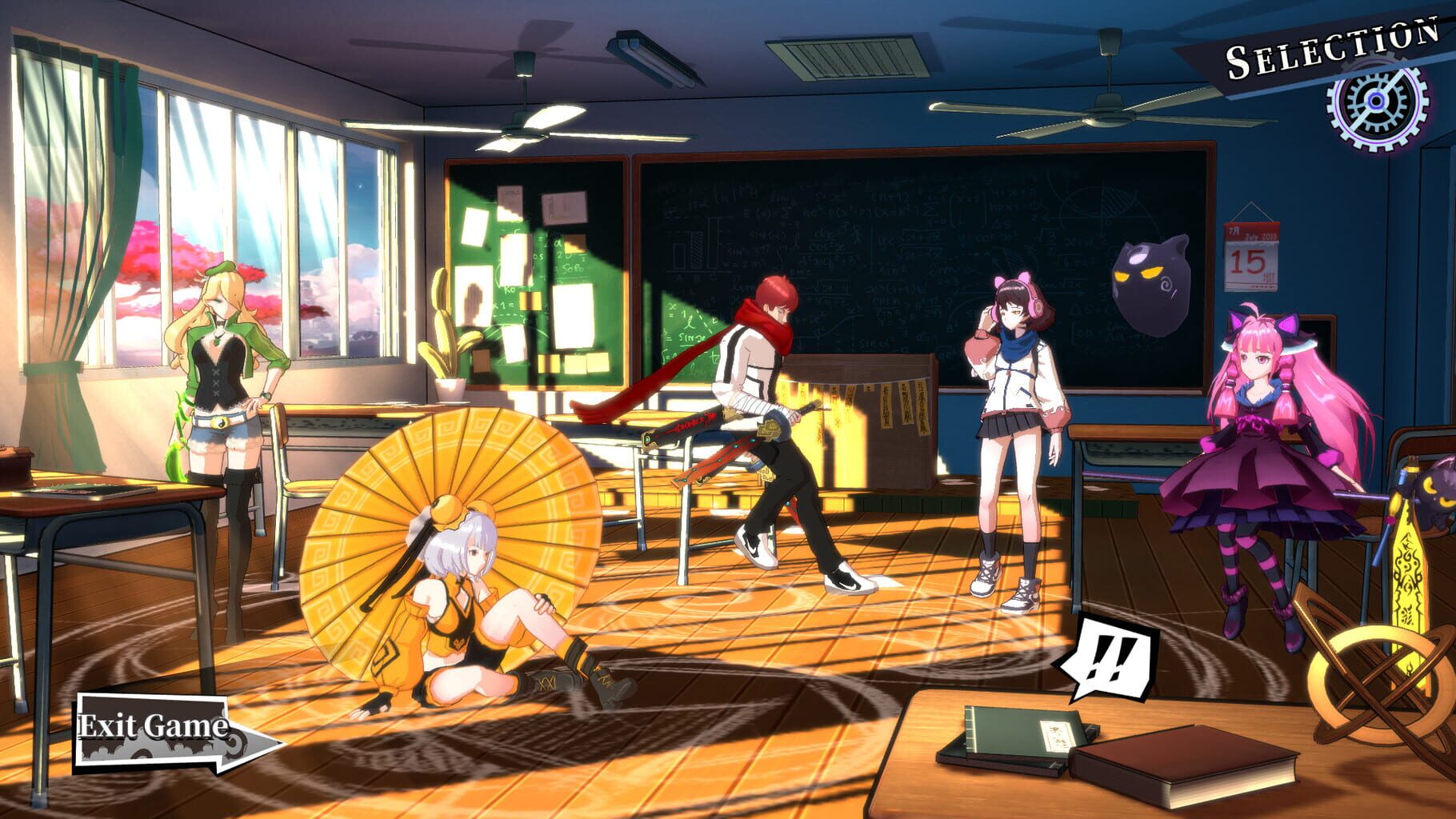
Zengeon is a Roguelike, Anime Style, Action Role-playing game. Blessed land, a Celestial place where masters live. For centuries, Celestial Academy guarded the enhancement for protecting human away from Dark Emptiness. But, every story has the end.. When lunar eclipse, the sky-fire strike through the enhancement. Now, Dark Emptiness come to earth and bring the Demon God back alive…
Summary from IGDB
Zengeon screenshots
Version history
- v3Current
different saves per instance and fixes
- v2
Proto Iput fixes
- v1
First release
Comments 0
No comments yet. Played it? Share what worked for your group.
Play these next
Browse all games
Monster Hunter Rise
Talos915.8k downloads4
Grim Dawn
Talos9116k downloads4
Marvel's Avengers
Rogueboy_x1.9k downloads4
Craftopia
Talos913.2k downloads4
The Incredible Adventures of Van Helsing: Final Cut
Talos911.3k downloads4
Hammerwatch II
Talos91619 downloads4
Browse by genre: Role-playing · Hack and slash · Adventure
Log in or create an account to comment.